

In today’s post, I am going to be talking about how you can go about changing the VMware vCenter Server Appliance (VCSA) SSO Domain from whatever is currently setup to a new domain.
One of my customer asked me to integrate the vCenter Server Appliance to their Active Directory (AD) domain so that Administrators can authenticate on vCenter using their Active Directory credentials instead of sharing the default Administrator@”VCSA SSO Domain”.
When evaluating the change requirement, I immediately realized that the VCSA SSO Domain is exactly the same as the Active Directory domain. Say that the AD domain name is lunar.cd and the current SSO Domain is also lunar.cd.
I checked online and could not really find a blog post that explained the process of changing the local SSO Domain on VCSA from the current value to a new value without pointing the VCSA to an existing VCSA in that domain, etc. The information is out there but not directly addressing my current need. Hence, I would like to share my personal experience.
So this blog post is an attempt to explain how I went about changing my SSO Domain. Please note that my environment consist of the following vCenter version:

Below are the steps I went through to update the SSO Domain from “vsphere.local” to “vsphere.lab” as an example:
01/ Enable SSH on vCenter Server using the vCenter Application Management Interface (AMI)
02/ Enable SSH Service (If not enabled already)
Validate that SSH service is running on the VCSA. Click on Access on the left hand menu as shown below:
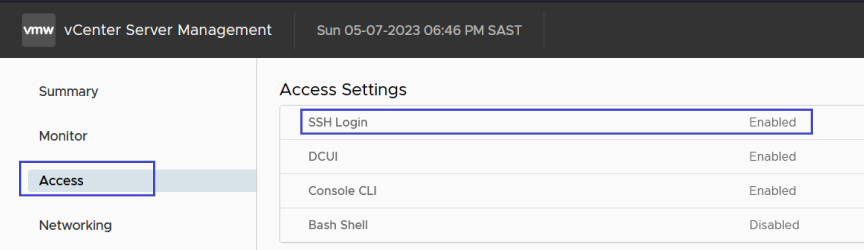
If the SSH Login service is not enabled, click on “Edit” and enable that service that you can access your VCSA via CLI.
03/ Log into your VCSA via SSH
By default, once you authenticate via SSH, you should land on a terminal prompt like this one:
login as: root
Pre-authentication banner message from server:
|
| VMware vCenter Server 7.0.3.01400
|
| Type: vCenter Server with an embedded Platform Services Controller
|
End of banner message from server
Keyboard-interactive authentication prompts from server:
| Password:
End of keyboard-interactive prompts from server
Connected to service
* List APIs: “help api list”
* List Plugins: “help pi list”
* Launch BASH: “shell”
Command>
Enable BASH Shell by entering the command “shell” as shown below. Please notice how the prompt changes:
Command> shell
Shell access is granted to root
root@CD-VCSA-01 [ ~ ]#
04/ Change the SSO Domain Name
Enter the following command to update the SSO Domain from the current value to the new value. In my example, the current SSO domain is “vsphere.local” and the new value is “vsphere.lab” on the same appliance.
root@CD-VCSA-01 [ ~ ]# cmsso-util domain-repoint -m execute –src-emb-admin Administrator –dest-domain-name vsphere.lab
Enter Source embedded vCenter Server Admin Password :
The domain-repoint operation will export License, Tags, Authorization data
before repoint and import after repoint.
WARNING: Global Permissions for the source vCenter Server system will be lost. The administrator for the target domain must add global permissions manually. Source domain users and groups will be lost after the Repoint operation. User 'Administrator@vsphere.lab' will be assigned administrator role on the source vCenter Server system.
The default resolution mode for Tags and Authorization conflicts is Copy, unless overridden in the conflict files generated during pre-check.
Solutions and plugins registered with vCenter Server must be re-registered.
Before running the Repoint operation, you should backupof all nodes. You can use file based backups to restore in case of failure. By using the Repoint tool you agree to take the responsibility for creating backups, otherwise you should cancel this operation.
Repoint Node Information:
All Repoint configuration settings are correct; proceed? [Y|y|N|n]: Y

05/ Log into vCenter using the new SSO Domain
Once the SSO Domain Name change is complete, you should be able to log into vCenter using the new Domain Name like “Administrator@vsphere.lab” in my example. You should see the new Domain Name reflecting in the vCenter Application Management Interface (AMI) and vCenter Administration UI:
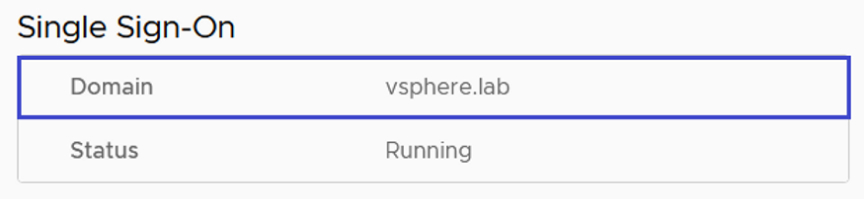


NOTE: Once the SSO Domain was changed to the new value that did not conflict with Active Directory domain, I was able to join the VCSA to the Active Directory Domain and configure it as an Identity Source. Systems Administrators are now able to log into vCenter using their Windows Active Directory credentials.